Plans and billing
Every new agency starts with a free trial of 14 days. All features are open during the trial and no card is needed. When it ends, the account owner chooses a plan in Billing, in the menu under Account.
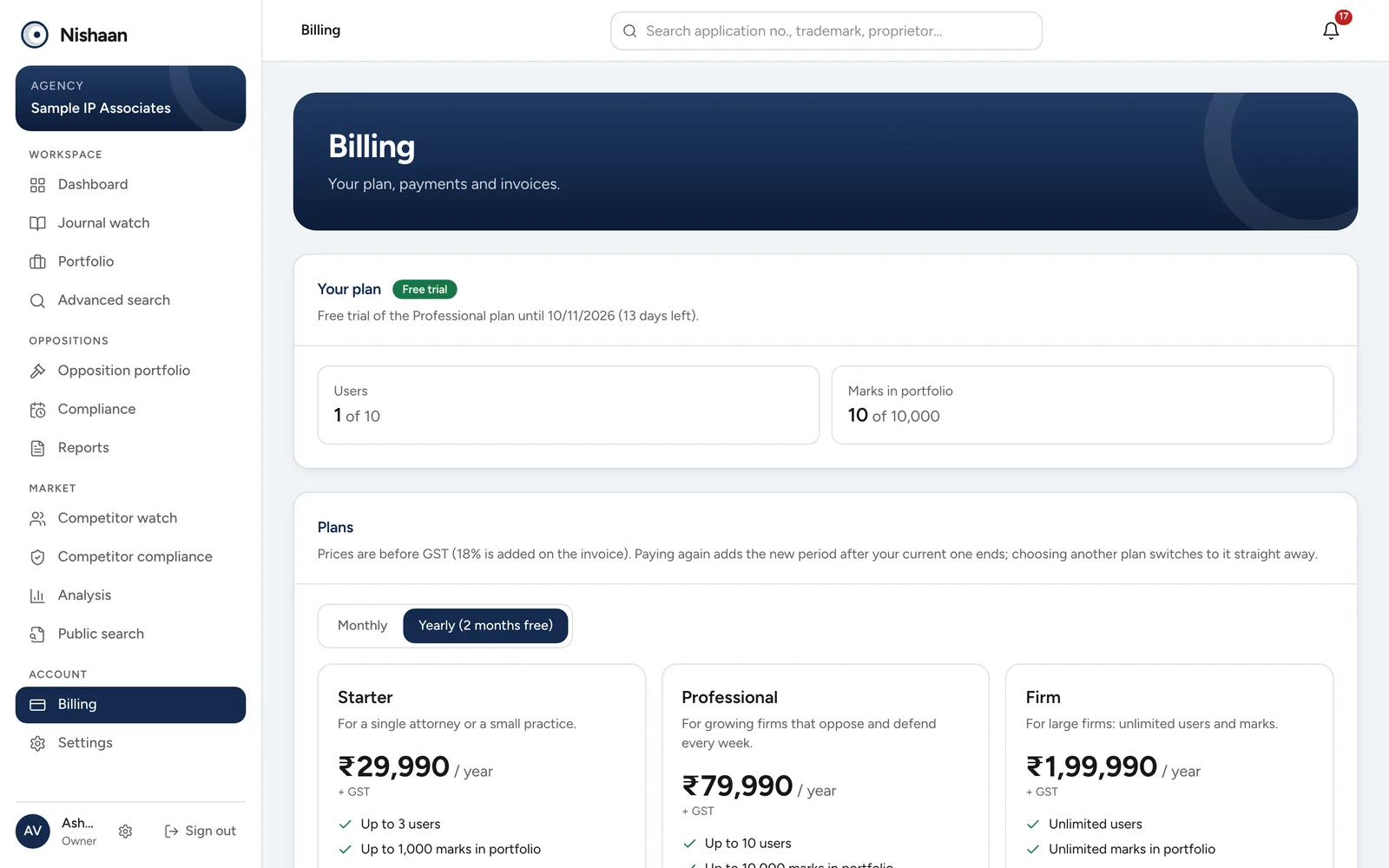
The Billing page during a free trial, with the users and marks in use and the plans to choose from.
Plans
Plans differ only in how many users, how many marks in your portfolio and how many AI requests a month they allow. Every plan has every feature; the pricing page lists them all, plan by plan. You can pay for one month or for twelve months; twelve months costs the same as ten.
Yatri Cloud is not yet registered under GST, so no GST is charged: the price you see is what you pay, and each payment gets an invoice (not a GST tax invoice). Once Yatri Cloud registers, prices show GST, invoices become GST tax invoices, and your state decides whether they show CGST and SGST or IGST.
Auto-pay
With auto-pay your plan renews by itself, by card or UPI AutoPay, and an invoice comes with every payment.
- Add your details under Billing details. Your state is needed once GST applies, as it decides whether CGST and SGST or IGST is charged.
- In Billing, pick Monthly or Yearly, then choose Start ... with auto-pay on a plan.
- Turn on auto-pay shows when the first payment is and what each payment costs. Choose Turn on auto-pay.
- Razorpay asks you to approve the card or UPI app once. It may hold ₹5 to check it and returns it straight away.
You can turn auto-pay on during your free trial. Nothing is charged until the trial ends. In the last three days of the trial, a banner at the top of every page offers Turn on auto-pay, which opens it straight away; it goes once auto-pay is on. If you have already paid ahead, the first auto-pay payment waits until that period ends, so you never pay twice for the same days.
The card at the top of Billing shows when the next payment is. If a payment does not go through, it says so and Razorpay tries again over the next few days. If every try fails, auto-pay stops and your plan runs until the end of the period you have paid for.
- Turn off auto-renew stops future payments. Your plan stays until the end of the period you have paid for.
- To change plan, choose Switch auto-pay to ... on another plan. The new plan starts when the current paid period ends.
Paying once
- In Billing, pick Monthly or Yearly above the plans.
- Choose Pay once on the plan you want. Review your order opens. It shows the dates the payment covers, your billing details and the price.
- Check the billing details. Add your billing address, and your GSTIN if you have one; once GST applies, the state decides whether CGST and SGST or IGST is charged. Whatever you enter here is saved for next time.
- Choose Pay. A Razorpay window opens. Pay with UPI, a card or net banking.
- When the payment goes through, Payment received shows how long your plan now runs and links to the invoice. The invoice also stays under Payments and invoices.
You can also change the billing details at any time under Billing details at the bottom of the page.
Paying once never sets up automatic payments. Paying again before your plan ends adds the new period after the current one, so you lose no days. Choosing a different plan switches to it straight away.
If online payment is not switched on yet, the page says so. Pay by bank transfer or UPI and write to the address shown; your plan is activated when the payment arrives.
Only the account owner can pay or change the plan. Other users see the plan and its limits.
Discount codes
If Nishaan has given you a discount code, enter it under Discount code in Review your order or Turn on auto-pay and choose Apply. The discount comes off the plan price before GST, so GST is charged on the lower price. The order shows the discount and the new total before you pay, and the invoice shows it too.
- Some codes work on one payment. Use them with Pay once; auto-pay will say the code does not apply.
- Other codes lower every payment, auto-pay renewals included.
- A code may work only on some plans, only monthly or yearly, or only until a date. If it does not apply, the message says why.
- Your firm can use each code once.
Invoices
Choose an invoice number under Payments and invoices to open the invoice. Use Print or save as PDF to keep a copy.
Refunds
Our refund policy explains when we refund. To ask for one, write to info@yatricloud.com from the account owner's email with your invoice number.
When a refund is made:
- the money goes back to the card, UPI or bank account you paid with. Your bank may take 5 to 7 working days to show it;
- the account owners get an email;
- Payments and invoices shows the refund under the amount, and the invoice lists the credit note, with the GST refunded.
If the whole payment is refunded, the period it paid for is removed from your plan. If you had nothing else paid, the account goes back to its free trial if that is still running, and otherwise only Billing opens. A part refund, such as the unused months of a yearly plan, keeps your plan and its dates as they are.
Limits
Your plan shows how many users and marks you have against what the plan allows. When you reach a limit, adding another user or mark tells you so; upgrade to add more. Syncing your portfolio from attorney codes adds the newest filings first and stops at the limit.
When a plan ends
You get an email seven days and one day before your trial or plan ends. A note also appears at the top of every page in the last week of a trial.
After a paid plan ends, the app stays open for three more days. After that only Billing opens until you pay. Your portfolio, cases and reports are kept, so everything is there again as soon as you renew.